



A Canary Page, Not a Website#
Captive.apple.com is the hostname Apple devices use to answer one question every time they join a network: is this Wi-Fi actually connected to the internet, or is a login page standing in the way? The mechanism is a probe. On joining, the device requests a tiny page, most visibly /hotspot-detect.html, and compares what comes back against the fixed answer it expects. In the recorded check behind this article, that answer is a 69-byte page whose content is simply the word Success, served with no cookies.
Receiving the expected Success tells the device the path to the internet is clear, and nothing visible happens. Receiving anything else, typically a hotel or airport login page that the network injected in place of the real answer, tells the device a captive portal is intercepting traffic, and that is precisely when the login window titled captive.apple.com pops up on an iPhone or Mac. The domain also publishes its own probe configuration at captive.apple.com/probe-info, listing the hostname and refresh intervals the system uses.
So the short answer to the search that brought most readers here: it is legitimate Apple infrastructure, one purpose-built endpoint, and seeing it in a popup, a router log, or a browser history entry means a device on the network was checking its connectivity, nothing more. The interesting details, and the fixes for when the mechanism misbehaves, are the rest of this guide.
Why It Keeps Popping Up#
The probe runs far more often than people expect, and every appearance in logs or on screen has the same innocent trigger: the device just evaluated a network. Joining any Wi-Fi fires it. Waking from sleep fires it. Roaming between access points on the same network, or briefly losing and regaining signal, fires it again, because each re-association is a fresh chance for a portal to be in the way. On portal networks specifically, the popup returns whenever the portal's session expires, which hotels commonly set to hours or a day, so a multi-night stay re-triggers the login window daily by design.
A popup with no portal network in sight usually has one of three causes. Weak signal at the edge of coverage makes the device re-associate repeatedly, re-running the probe each time. A home or office network whose router briefly loses upstream connectivity makes probes fail during the outage, and the device keeps re-checking until the path clears. And network-side filtering that interferes with the probe itself, covered in the admin section below, convinces every Apple device in the building that something is wrong with a perfectly working network.
Frequency alone is never the signal of a problem: a household of Apple devices legitimately generates a steady stream of these requests all day. What matters is only whether the checks succeed, and whether the popup appears when no login page should exist.
Interceptable on Purpose: How the Probe Works#
The design looks backwards until the purpose clicks: the probe is fetched over plain HTTP precisely so that a captive portal CAN hijack it. A portal works by intercepting a visitor's first unencrypted request and answering with its own login page; an encrypted request cannot be rewritten that way without triggering certificate errors. The recorded lab confirms both halves of the design: the plain-HTTP probe answers 200 Success normally, and the same endpoint also serves the identical content over HTTPS for contexts that want the authenticated variant. The interceptable half exists to be hijacked; the hijack IS the detection.
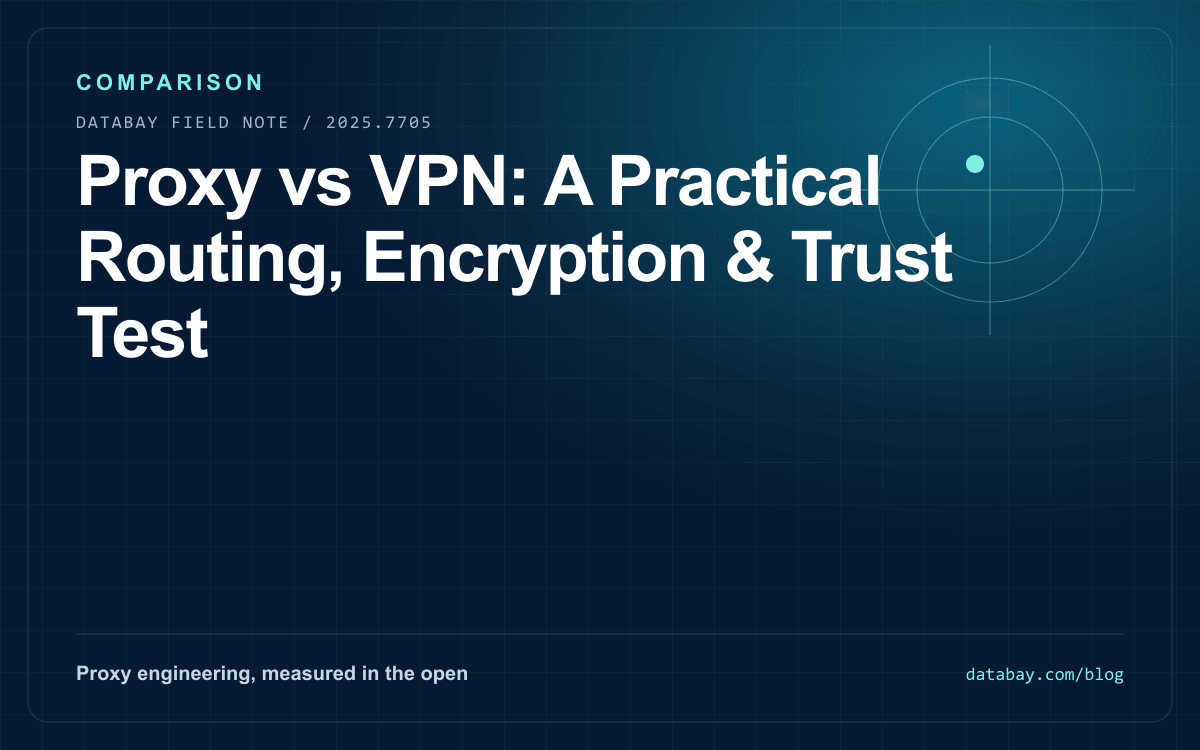
Every consumer operating system runs the same trick against its own endpoint. Apple devices probe captive.apple.com, Android and Chrome request an empty 204 from a Google endpoint per Chromium's portal-detection notes, and Windows probes a Microsoft connect-test host. The newer, cleaner path is RFC 8910, where the network itself announces its portal via DHCP instead of waiting to be caught intercepting; support is growing, and until it is universal, the probe dance remains how every device learns the truth.
One privacy note belongs here because the domain appears in device traffic constantly: the probe is a fixed page, the recorded response sets no cookies, and the request carries the usual connection metadata any HTTP request carries. It is a connectivity canary, not a browsing log.
When the Portal Sticks: Fixes That Work#
The mechanism's one common failure is the stuck portal: the network wants a login, but the window never appears, shows blank, or loops. The fix ladder, in the order worth trying. First, force the probe by hand: open a browser and go to captive.apple.com directly, or any plain-HTTP page; on a portal network the interception will grab that request and serve the login page in a full browser, which renders complex portal pages more reliably than the popup webview. Second, forget and rejoin the network, which resets the association and re-runs detection from scratch; it is the standard cure for a portal session wedged half-open.
Third, turn off the privacy layers for the duration of the login. VPNs and encrypted-tunnel apps block the portal's ability to intercept anything, so the login can never appear until the tunnel is down; connect to the portal first, then bring the tunnel up, a sequencing quirk explained in the proxy versus VPN comparison. The same applies to encrypted-DNS settings and, on Apple devices, per-network options like Private Relay and address rotation: temporarily disabling them for the portal network removes the interference, and iOS exposes exactly these toggles per network for this reason.
Fourth, if the portal page loads but its buttons do nothing, the portal itself is broken in a way only the venue can fix; the front desk resetting your session, or a different network, are the honest remaining options. Custom DNS servers configured on the device deserve a final mention: they can break detection entirely by answering the probe hostname wrongly, which presents as endless popups on working networks.
On Your Network's Logs and Filters#
Administrators meet this domain from the other side: as a permanent presence in DNS and firewall logs, one entry per Apple device per network event, all day. That volume is the mechanism working. The actionable rule is simple: let the probes through untouched. Blocking, filtering, or DNS-rewriting captive.apple.com does not make Apple devices trust the network more; it convinces every one of them that a portal or a fault stands between them and the internet, producing spurious login popups, "no internet" banners on working Wi-Fi, and helpdesk tickets that describe exactly the Cisco-forum classic: Success pages popping up on every network join.
Three specific interactions cause most enterprise incidents. DNS filtering that answers the probe hostname with a filter page converts every join into a false portal detection. TLS-inspecting middleboxes that touch the HTTPS variant break the authenticated check with certificate errors the devices rightly distrust. And overly broad ad-block lists occasionally include connectivity-check hosts, with the same false-portal result; the cure is an explicit allow for the probe endpoints of every OS family your users carry, Apple's alongside the Google and Microsoft equivalents.
For actual captive-portal deployments, the modern advice is to announce the portal via the DHCP option from RFC 8910 as well as intercepting, which gives compliant devices a clean, race-free signal and reduces the webview weirdness your guests experience. The probe hosts remain the fallback for everything older.
Verify It Yourself#
Every claim above reproduces with one command from any network without a portal:
curl -s -D - -A "your-lab/1.0" http://captive.apple.com/hotspot-detect.html

HTTP/1.1 200 OK
Content-Type: text/html

<HTML><HEAD><TITLE>Success</TITLE></HEAD><BODY>Success</BODY></HTML>
A 200 with that tiny Success body, and no Set-Cookie header, is the healthy answer the devices expect; the recorded run measured it at 69 bytes. Run the same command on a fresh portal network before logging in and you will see the hijack live: a redirect or a full login page in place of Success, which is the exact observation an iPhone turns into its popup.
The lookalike rule from elsewhere in this cluster applies here unchanged: the legitimate hostname ends in apple.com, full stop. Phishing kits love borrowing connectivity-check names because users have been trained to type credentials into portal pages, so a login page served from any domain that merely contains the word captive deserves suspicion, and a portal asking for anything beyond the venue's access credentials, such as email passwords or payment card numbers for free Wi-Fi, deserves refusal. On the genuine article there is nothing to log into at all: as the probe-info file shows, the real endpoint's whole vocabulary is one word, Success.
Seen in a device's website data or history, the entry is the popup webview having done its job, and clearing it is harmless. Seen thousands of times in a router log, it is a healthy fleet checking its connectivity, exactly as designed.